Health Insurance
The Basics
What is private health insurance?
What is Hospital cover?
What is Extras cover?
Where can I find information about the Australian Government Rebate on health insurance?
Where can I find information about Lifetime Health Cover?
Where can I find information about the Medicare Levy Surcharge?
What are Waiting Periods?
What is a pre-existing condition?
What is an excess?
What is an out-of-pocket expense?
Buying Health Insurance
Up to what age will my children be covered under my policy?
How do I join Qantas Health Insurance?
What payment options are available?
I’m currently under my parent’s policy, when will I need to get my own?
Will I have to serve waiting periods again if I am switching from another health fund?
When will I receive my membership card?
Is there a cooling off period for Qantas Health Insurance?
Managing my Policy
How do I update my details online?
How can I change who is covered on my membership?
What should I do if my Qantas Insurance card is lost or stolen?
Can my partner also make changes to our policy?
Can I suspend my policy if I’m going overseas?
Can I suspend my policy?
How do I change my level of cover?
How do I add my newborn to my policy?
Making a Claim
How do I make a claim?
How do I know if a waiting period still applies for a hospital or extras service?
How do I find out the remaining amount left to claim on my Extras services for the year?
Earning Qantas Points
How many Qantas Points will I earn for joining?
I haven’t received my Qantas Points for joining health insurance?
How many Qantas Points will I earn each year with my health policy?
How many Qantas Points will I earn with the Qantas Wellbeing App?
What is the Active Kids Program benefit?
Complaints
How do I resolve a complaint or dispute?
What information do I need to provide when I lodge a complaint?
Under 30’s Discount
What % discount will I get with the age-based discount?
If I switch health funds, will my age-based discount apply from my previous health fund?
Does my discount apply to Hospital and Extras cover?
I’m already a member - do I get the discount?
What happens if we have a Couples policy?
What if I get an aged-based discount but my partner has a lifetime health cover loading (LHC)?
Tax Time
When will I receive a copy of my FY20 Private Health Insurance Statement?
What do I have to do when lodging my tax return?
What does my Private Health Insurance Statement include?
How can I find a copy of my Private Health Insurance Statement?
What do I do if my Private Health Insurance Statement is incorrect?
What if I didn’t have Hospital cover for the full year?
Will I receive a Lifetime Health Cover Statement at tax time?
How can I contact the Australian Taxation Office?
Flood Disaster Relief package 2022
About the Flood Disaster Relief package
What is the Flood Disaster Relief package?
Am I eligible for the Flood Disaster Relief Package?
When can I apply for the Flood Relief Package?
If I‘ve received a previous disaster relief premium waiver with Qantas Health Insurance, am I still eligible to receive the flood relief waiver?
Maximum age of dependants reform
What age of dependant changes has the Australian Government introduced to private health insurance?
When will the changes take effect?
What do I need to do to remain as an eligible student or non-student dependant under my family policy?
What do I need to do to add a new student or non-student dependant to my policy?
When will the age limit be removed for dependants with a disability in line with the legislation introduced by the Government?
Will premium prices increase as a result of the changes?
Can I still receive an aged-based discount if I’m a dependant?
COVID-19 Cash Give Back
Is Qantas Health Insurance giving back further COVID-19 savings to members?
How much will members receive?
Who is eligible for the COVID cash give back?
Why is Qantas Health Insurance providing a COVID cash give back while increasing my premiums?
What do members need to do to get the payment?
What if you don’t have my bank account details?
When will it land in my bank account?
I’d rather not have a premium increase than receive a giveback payment. Is that possible?
Why are other funds doing much larger cash back offers?
Is this part of the same COVID cash give back provided last year?
How did you decide how much money each policyholder would get?
Has some of the money saved been retained because claims were lower?
COVID-19 Pandemic (updated March 2023)
When is the COVID-19 support package ending?
Is Qantas Health Insurance extending telehealth benefits indefinitely?
Am I eligible to claim for telehealth benefits?
What services are covered under telehealth?
Does my health insurance cover doctors’ appointments?
Am I covered for pathology tests for COVID-19?
Will COVID-19 be considered a pre-existing condition?
If my planned public hospital procedure needs to be moved to a private hospital, will I be covered?
I have a procedure coming up, what should I do?
Changes to how some dental benefits are paid 2026
What are the changes to dental benefits from 1 October 2026?
Who do these changes apply to?
When does these changes start?
What is a set benefit?
What is a First Choice network dental provider and how do I find one?
Do I have to switch dentists?
Could I pay more out-of-pocket costs?
What should I do before treatment?
How can I find the set benefit before I book with a non-First Choice network dental provider?
How will my claim be processed at a non-First Choice network provider?
I'm already undergoing dental treatment. What does this change mean for me?
Does this change apply to all dental services?
Will this affect my dental Extras limit?
Will this change affect my premium?
Do I need to do anything?
Why we're making this change to how some dental benefits are paid
Have further questions on the changes to dental benefits from 1 October 2026?
2024 Health insurance premiums
Why is Qantas Health Insurance increasing its premiums on 1 April?
Is your cover still right for you?
Who determines when, and by how much, premiums change?
When will the price change come into effect?
What is driving the increase in premiums?
My premiums only just increased in October, why am I receiving an increase again?
Why are some product premiums increasing more than others?
When will members be notified of the changes?
Are other health funds increasing their premiums?
I’m struggling financially, is Qantas Health Insurance offering any additional financial support?
I paid my premium for the year in advance to avoid the premium changes. Do I need to pay an additional amount?
If I make a payment for premiums due prior to 1 April 2024 will I need to pay the higher premium price?
When is the last date I can make a pre-payment to avoid the premium increase?
Why should I keep my private health insurance cover?
What is Qantas Health Insurance doing to help reduce out-of-pocket expenses?
How do I make the most of my cover?
What if I have any questions?
Digital Health Insurance Card
How do I access my Qantas Health Insurance digital card on my device?
Do I need a physical card if I have my Qantas Health Insurance digital card on my device?
How do I know if my claim has been approved?
On which devices is the Qantas Health Insurance digital card available?
What happens to my Qantas Health Insurance digital card if I need to update my details?
Where can I use my Qantas Health Insurance digital card?
Troubleshooting Tips for Your Digital Card on iPhone
2025 Health insurance premiums
Why is Qantas Health Insurance increasing its premiums on 1 April 2025?
Who determines when, and by how much, premiums change?
Is your cover still right for you?
When will the price change come into effect?
I’m struggling financially, is Qantas Health Insurance offering any additional financial support?
Does the price increase mean members will receive extra benefits?
Are other health funds increasing their premiums?
When will members be notified of any changes?
When is the last date I can make a pre-payment to avoid the premium increase?
I paid my premium for the year in advance to avoid the premium changes. Do I need to pay an additional amount?
If I make a payment for premiums due prior to 1 April 2025 will I need to pay the higher premium price?
Why should I keep my private health insurance cover?
How do I make the most of my cover?
What is Qantas Health Insurance doing to help reduce out-of-pocket expenses?
What if I have any questions?
What are the preventative dental changes and what does this mean for you?
How the Australian Government Rebate adjustment will impact your premium
Why has the NSW Government’s single room rate requirement been applied to my premium price?
Why are some product premiums increasing more than others?
Changes to NSW Private Room Rates 2026
What is changing with NSW Private Room Rates from 1 October 2026?
Who do these changes affect?
When does this start?
What's the difference between a private room and a shared ward?
Will this change affect my treatment or care?
Will this change what I pay for my treatment?
Is this a change to my policy or product?
Can I use my private health cover in a public hospital?
Can I still choose a private room?
Are there cover options that continue to include private room accommodation benefits?
What happens if I go to hospital in an emergency? Do I have to ask to be put in a shared ward to avoid paying for a private room and what if none are available?
I'm booking in for elective surgery. What should I ask my specialist, doctor or hospital?
I'm being admitted before 1 October 2026, will my room be covered?
Do I need to do anything differently to claim after the change?
Will this affect my premium?
How can I reduce potential out-of-pocket costs?
Why we're making this change
Does this mean I am no longer covered in NSW public hospitals?
Have further questions on the changes to NSW Private Room Rates from 1 October 2026??
2026 Health insurance premiums
Why is Qantas Health Insurance increasing its premiums on 1 April 2026?
Is your cover still right for you?
Who determines when, and by how much, premiums change?
When will the price change come into effect?
I’m struggling financially, is Qantas Health Insurance offering any additional financial support?
Does the price increase mean members will receive extra benefits?
What determines your premium?
Are other health funds increasing their premiums?
When will members be notified of any changes?
What if I have any questions?
Why are some product premiums increasing more than others?
What is Qantas Health Insurance doing to help reduce out-of-pocket expenses?
How do I make the most of my cover?
Why should I keep my private health insurance cover?
When is the last date I can make a pre-payment to avoid the premium increase?
I paid my premium for the year in advance to avoid the premium changes. Do I need to pay an additional amount?
If I make a payment for premiums due prior to 1 April 2026 will I need to pay the higher premium price?
How the Australian Government Rebate adjustment will impact your premium
Your Qantas Silver Plus Advanced Hospital quote
Qantas Health Insurance Competition 2024
Your Qantas Kickstart Extras quote
Car Insurance
The Basics
What types of car insurance does Qantas offer?
What’s covered under Comprehensive car insurance?
Which car insurance is compulsory to have?
What's the difference between Third Party Property and Compulsory Third Party (CTP) insurance?
Would Third Party Property, Fire and Theft Insurance cover attempted theft-related damage to my car or personal items stolen from my car?
What is a car insurance excess?
What is a ‘no fault’ accident?
What is a Target Market Determination (TMD)?
What is the online discount for car insurance?
What is “Your duty not to make a misrepresentation”?
Making a claim
I’ve had an accident - what do I do now?
Does Qantas Insurance guarantee the repairs?
My car is a write-off. What happens now?
Do you offer support for paying a car insurance excess?
Does Qantas Insurance have a repairer network?
What happens in the event of a car accident or an emergency?
How do I obtain a Confirmation of Transaction for my claim?
Managing your Car Insurance policy
How do I set up an online account?
Managing your Qantas Car Insurance policy
I’m selling/trading in my car and buying another - can I transfer my insurance to my new car?
What changes can I make to my car insurance?
Do you subscribe to an industry code?
What if I want to make a complaint?
How can I get help contacting Qantas Car Insurance?
Can you offer assistance if I am experiencing vulnerability or hardship?
Support and Assistance
Can you offer assistance if I am experiencing vulnerability as a Qantas Car Insurance policyholder?
What support is provided if I am experiencing domestic and family violence as a Qantas Car Insurance policyholder?
What support is provided if I am experiencing financial hardship as a Qantas Car Insurance policyholder?
Home Insurance
The Basics
What types of home insurance does Qantas Insurance offer?
What does home insurance cover?
What does contents insurance cover?
What optional extras are available with Qantas Home Insurance?
Does home insurance cover storm damage?
Does home insurance cover leaks?
Does home insurance cover termite damage?
Does home insurance cover theft?
Does home insurance cover theft while travelling?
Does home insurance cover breakage of glass?
Does home insurance cover mobile phones?
What is Landlord Insurance?
What is an excess?
When do I pay an excess?
What is a Target Market Determination?
What home insurance discounts are available?
What is "Your duty not to make a misrepresentation"?
Buying Home Insurance
Should I get home insurance?
How much is home insurance?
Does Qantas Home Insurance have a cooling-off period?
I’m selling my house - what do I need to do with my insurance?
Can home insurance be transferred to another home?
I’m building a house, so when should I get home insurance?
Do I need to list, or specify, home contents on my policy?
What if the amount I insure my home for is too low?
When does my home insurance take effect?
Making a claim
Excesses
Can I pay my excess later?
What if I can’t afford to pay the excess?
Do I have to pay an excess when I was not at fault?
What is my excess for a claim if I have Landlord Options covers?
Can I change my home insurance basic excess?
Before you lodge a claim
How do I make a home insurance claim?
What happens in an emergency?
What should I do with my flood-affected contents and carpet?
A water pipe in my home has burst – what do I do?
My home has been burgled – what do I do?
A tree has fallen on my house – what do I do?
Is water damage covered?
Am I covered for flood?
Am I covered for trees falling?
What is not covered by my home insurance policy?
How do I know if it’s worth making a claim?
If I make a claim will my premium increase?
Claims Lodgement
What if I have a question about my claim?
How do I send you the documents supporting my claim?
Am I required to provide proof of loss or damage (e.g., receipts)?
What documents do I need to supply if I’m claiming for the landlord benefit on loss of rent after an insured event?
What documents do I need to supply if I’m claiming for optional landlord covers?
Do I need to supply a police or fire brigade report?
How long will my claim take?
Why are you asking me about GST?
Why are you asking me about my ABN?
Could my claim be declined?
Claims assessment, settlement, repairs etc.
What happens in an assessment?
How long does a home claim assessment take?
What if I can’t stay at home?
What are exploratory costs?
What is a leak detection test?
What happens after the assessment?
Can I throw out damaged items?
How long do home insurance repairs take?
Will my storage costs be covered while my home is being repaired?
How do we decide whether to repair or replace damaged contents?
Can I get a home insurance cash payout instead of repair or replacement?
Who will be my main point of contact during the repairs to my home?
Does Qantas Home Insurance guarantee the repairs?
Who will repair my home?
Can I use my own repairer?
Can I choose who replaces my damaged contents?
If only part of a room is damaged, can you ensure that the replacement materials will match the undamaged part?
What is the Scope of Works?
Why am I getting a contract that I need to sign?
How will my home insurance claim be settled?
How do I complain about the decision to deny my home insurance claim?
Why is home maintenance not covered?
How do I obtain a Confirmation of Transaction for my claim?
Managing your Home Insurance policy
How can I see and change my home insurance policy details?
Can I change my home insurance at any time?
Does my home insurance renew automatically?
If I cancel my home insurance, will I have to pay a fee?
Can I cancel my home insurance policy and get a refund?
What if I want to make a complaint?
Can you offer assistance if I am experiencing vulnerability or hardship?
Do you subscribe to an industry code?
How can I get help contacting Qantas Home Insurance?
How do I set up an online account?
Support and Assistance
Can you offer assistance if I am experiencing vulnerability as a Qantas Home Insurance policyholder?
What support is provided if I am experiencing domestic and family violence as a Qantas Home Insurance policyholder?
What support is provided if I am experiencing financial hardship as a Qantas Home Insurance policyholder?
Travel Insurance
Purchasing
Does my policy provide cover for existing medical conditions?
Can I buy Qantas Travel Insurance even though my trip has already started?
Does my policy provide cover for riding a motorcycle overseas?
Is a Qantas Travel Insurance policy the same as what I can get for free on my credit card?
Does my policy cover cruises?
Why should I consider travel insurance?
Will I earn Qantas Points when I purchase a travel insurance policy?
Which adventure activities are covered?
What is Specified Items Cover?
How can I buy Qantas Travel Insurance?
Does Qantas Travel Insurance cover COVID-19?
Can I use Qantas Points to take out a travel insurance policy?
Which adventure activities are NOT covered?
Does my policy provide cover if I’m travelling while pregnant?
Your Policy
Where do I find details about my policy cover?
Will my policy cover me if I consume alcohol during my trip?
How do I amend my Travel Insurance policy?
How do I cancel my Travel Insurance policy?
I’ve changed the dates for my flights, will my travel insurance details update automatically?
Can I extend my policy dates to cover me if it runs out while I’m still overseas, or will I have to buy a new policy?
When will I receive my Qantas Points for my travel insurance policy?
What if my policy was purchased on or before 19 July 2023?
Claiming
Help while travelling
Travelling when warnings are in place
If the government issues a ‘Do not travel’ warning for my destination and I choose to go there anyway, will I be covered?
If the government issues a ‘Do not travel’ warning for my destination while I’m there, will I be covered?
Help
Life Insurance
Buying a Qantas Life Insurance policy
Managing a policy
Managing your existing Qantas Life Insurance policy
Can I cancel my policy if I no longer need it?
Will I earn Qantas Points with my Qantas Life Insurance policy?
Making a claim
How do I make a claim?
How does Bundled Cover work when I make a claim?
What happens in the event both my partner and I pass away and they're my beneficiary?
Complaints
Code of Practice
Help
Is there assistance with transport to Medical Appointments from rural or regional locations?
What if I’m having difficulty meeting timelines or getting identification documents?
How do I access translation services?
What can I do if I’m suffering financial hardship and am having trouble paying my premium?
Need more information?
Do you offer any assistance if I am experiencing vulnerability or hardship?
Wellbeing
Getting Started
How do I download the Qantas Wellbeing App?
How do I log in?
What if I’ve forgotten my Qantas Frequent Flyer PIN?
What if I’ve forgotten my Qantas Frequent Flyer membership number?
Which phones are compatible with the Qantas Wellbeing App?
How do I upload a profile picture?
How do I remove a profile picture I have uploaded?
Who can see my profile picture?
How can I invite people to be my friend within the App?
Can the Qantas Wellbeing App be used by vision-impaired members?
Do my Qantas Wellbeing App friends need to be members of Qantas Insurance?
Connecting Your Qantas Wellbeing App to Google Health (Fitbit)
Connecting Your Qantas Wellbeing App to Google Health Connect
Fix Syncing Issues
How do I fix Apple Health or Apple Watch syncing?
How do I fix Samsung Health syncing?
How do I fix Garmin syncing?
How do I fix Google Fit syncing?
How do I fix Strava syncing?
Troubleshooting Android Permissions for Google Health & Wellbeing
Troubleshooting iOS Permissions for Google Health & Wellbeing
How do I fix Health Connect syncing?
Fix Syncing Issues
How Do I Resolve Step Sync Issues Between Google Fit and Health Connect?
Tracking Your Activities
What is an activity?
What’s the most effective way to track my activities?
How do I change my activity for the Daily or Weekly challenge?
At what time and how often do my step counts reset?
How do I track swimming?
Do I need a wearable?
How can I ensure Apple’s Health App is connected to the Qantas Wellbeing App?
I forgot to sync my App or device with the Qantas Wellbeing App. Will I lose points?
Why isn't my Garmin data showing in the App?
How do I connect my Fitbit to the Qantas Wellbeing App?
How do I disconnect Fitbit from the Qantas Wellbeing App?
How do I change or add a new Fitbit?
How do I enable swimming on Fitbit?
Are all Fitbit devices compatible with the Qantas Wellbeing App?
Can my partner and I link both our Fitbits to the same Qantas Wellbeing App?
Why are the steps I see on my Fitbit device different to the steps in my Qantas Wellbeing App?
How can I ensure the Google Fit App is connected to the Qantas Wellbeing App?
How do I disconnect Strava from the Qantas Wellbeing App?
How can I ensure Strava is connected to the Qantas Wellbeing App?
What other apps and devices can I use with the Qantas Wellbeing App?
Can I use Garmin to track my activity?
Why is my device not syncing with the Qantas Wellbeing App?
Can I have more than one device synced to the same Qantas Wellbeing App?
Challenges and Badges
When do challenges start and end?
How do I change my daily or weekly goals?
What is the Friends Challenge?
Why do my friends only have until midnight (AEST) to join my Friends Challenge?
What happens if there is a tie in a Friends challenge?
I started a Friends Challenge but it was terminated - why is this?
How often and when can I change my goals?
Can I be in more than one Friends Challenge?
What is the 7 Day Leaderboard?
What period does the 7 Day Leaderboard cover?
Why does it take up to 12 hours for the Friends Challenge results to be finalised?
Can I leave a Friends Challenge once it's started?
How do I earn badges?
What is the Master of Rings challenge?
Car Check-ups
What do I enter into the App to complete the tyre pressure check?
How can I check the pressure of my tyres?
How many Qantas Points can I earn with the Tyre Pressure Check?
How can I change my service reminder?
Why didn’t I receive a reminder to service my vehicle?
How many Qantas Points can I earn with the Service Check?
Sleep Health Challenge
How do I succeed the sleep health challenge?
How many points can I earn through the sleep health challenge?
What happens if I move or use my phone before my set wake time?
What happens if I don’t enable Motion Tracking or Usage Tracking in the Sleep Health Challenge?
Why didn’t I receive a phone down reminder?
Can I see a results history for my sleep health challenge?
Why can’t I make my bedtime less than 6 hours?
Can I set a different bedtime for different days of the week?
How can I change my bedtime and phone down reminder settings?
How does the “Delay Bedtime by 30 mins” button work?
Points Multipliers
28 Day Trial
What is the 28-Day Trial?
What happens when the 28-Day Trial ends?
Do I get to keep the Qantas Points I earned during the Trial?
When does my 28-Day Trial start?
Your Qantas Points
How do I claim the Active Kids Program benefit in the Wellbeing App?
When will the Qantas Points I have earned from the Qantas Wellbeing App be credited to my Qantas Frequent Flyer Account?
Support / Feedback
How do I report a profile picture?
How do I receive support or give feedback about the Qantas Wellbeing App?
I downloaded the App but have since deleted it, yet friends can still see me in the App. How can I be removed?
How do I request for a deceased member and their data to be removed from the Qantas Wellbeing App?
How can I delete my Wellbeing App data?
Technical
What happens if I change time-zones?
What happens if my phone is not connected to the internet?
My Qantas Wellbeing App doesn't notify me of friend requests, badges or challenges. How can I fix it?
When I log in to the Qantas Wellbeing App, it displays the message "There is an issue granting access to your account". What's going on?
Contact Us
General Insurance
All Categories > Wellbeing > Getting Started > Connecting Your Qantas Wellbeing App to Google Health (Fitbit)
Connecting Your Qantas Wellbeing App to Google Health (Fitbit)
Fitbit (now Google Health) has changed the way your health and fitness apps work together. This change requires your activity data to sync via Apple Health (for iOS), or Google Health Connect (for Android) which serves as a central, secure hub.
What does this mean for you?
From 30 September 2026, the Google Health (Fitbit) App will no longer sync directly with the Qantas Wellbeing App. To keep tracking your activities from your Fitbit device, you'll need to let the Google Health (Fitbit) App share your data with Apple Health (for iOS devices), or Health Connect (for Android devices).
See steps below for iOS and Android to keep tracking your activities and earning Qantas Points.
How to get started for iOS:
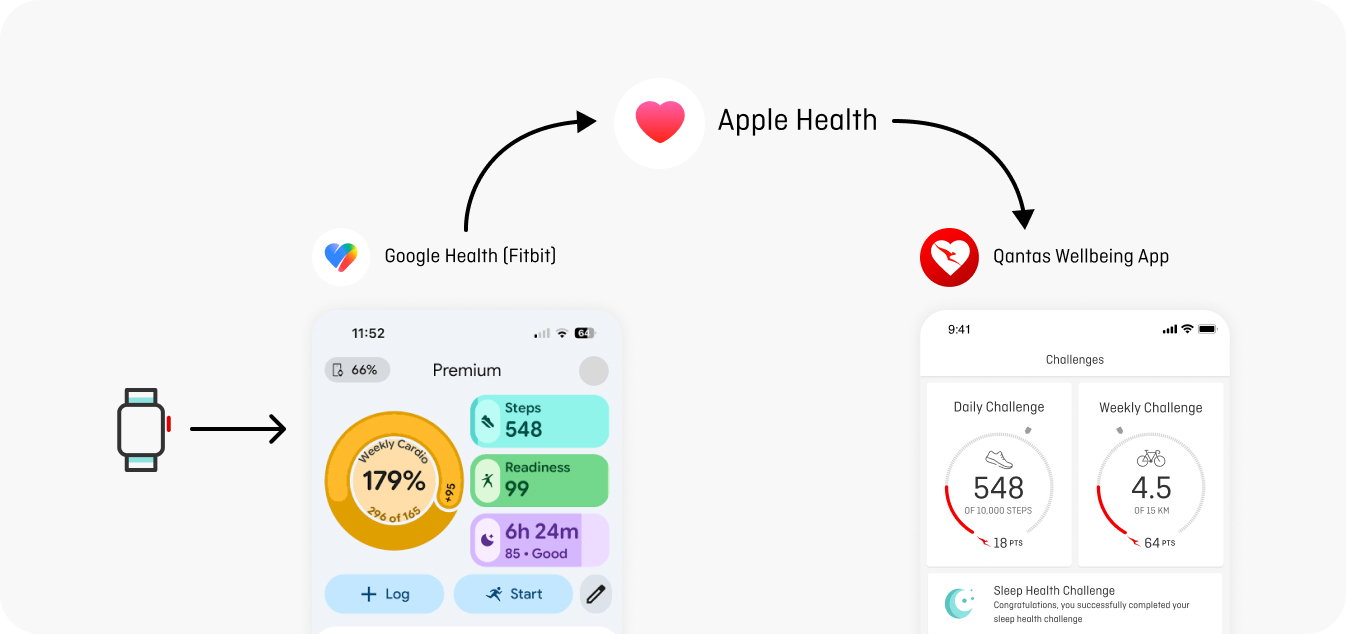
1. Check you're ready
- Make sure you have access to the Apple App Store
- Make sure your iOS device is running iOS 15.4 or higher
- Update the Qantas Wellbeing App to the latest version
- Update the Google Health app (Fitbit) to the latest version
2. Make sure you have the Apple Health App installed
- Download the Apple Health app from the App Store, if not already installed
- Once installed, continue to the next step
3. Sync Google Health (Fitbit) with Apple Health
- Open the Google Health (Fitbit) App
- Sync Google Health (Fitbit) with Apple Health by;
- Select your profile
- Select “Apps and services”
- Select Add Connections with Apple Health
Follow the steps to connect, ensuring that you choose to share “Fitness and Wellness Activity data” and opt to share the relevant activity data.
If you need any additional help, please refer to the Google support page for useful information about setting up Health Connect.
4. Set up Apple Health in the Qantas Wellbeing App
- Open the Qantas Wellbeing App
- Go to Profile > Settings > Data Sources > Apple Health
- Select the type of activity you would like to track
- Apple Health will open to request access permissions to relevant data types
- Review the permissions carefully and read the privacy information
- Select the data types requiring read access for your selected activity and tap Allow
- When prompted to access data in background, tap Allow to enable background data syncing
- If requested, follow the prompts to Turn on usage access
- Return to the Qantas Wellbeing App if not automatically redirected. A tick icon will confirm that you are connected to Apple Health
To select another activity type to track, please repeat steps 4 - 9.
Note: To ensure immediate sync, tap the Sync Now option within the Daily or Weekly Challenge section in the Qantas Wellbeing App or refresh the activity dashboard.
How to get started for Android:
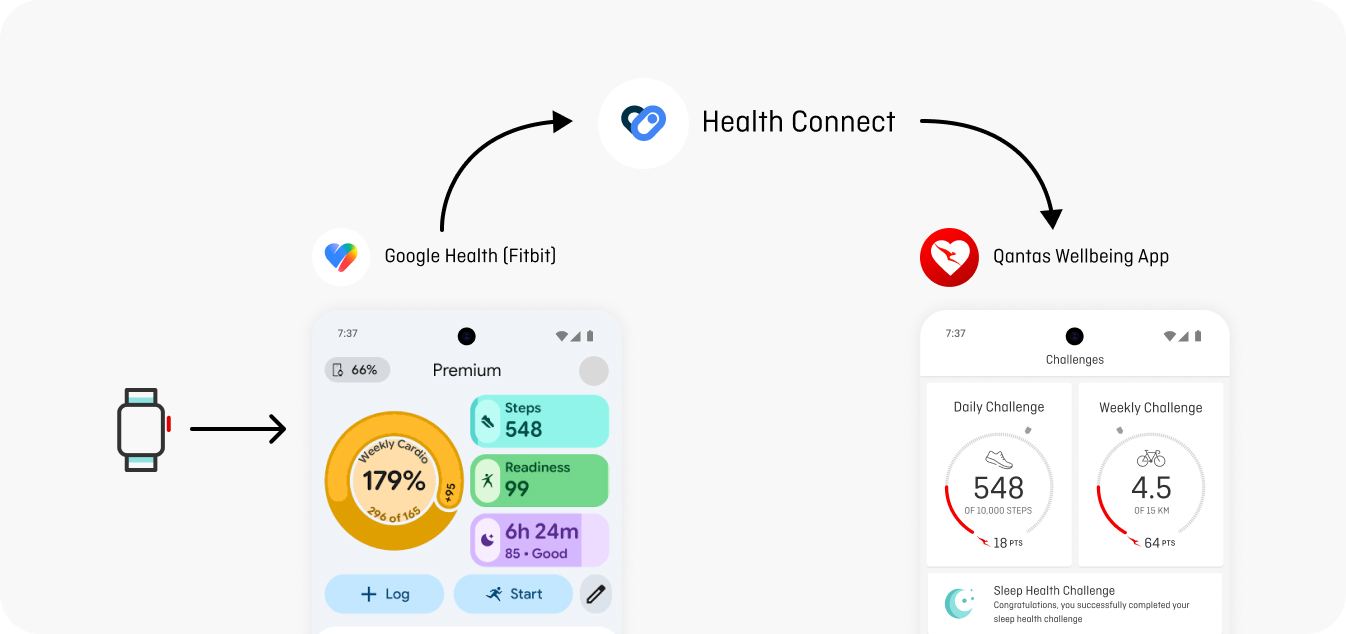
1. Check you're ready
- Make sure you have access to the Google Play Store
- Make sure your Android device is running Android 9 or higher
- Update to the latest version of the Qantas Wellbeing App
- Update to the latest version of the Google Health (Fitbit) App
2. Install Health Connect
- Download the Health Connect App, if not already installed
- Once installed, continue to the next step
3. Sync Google Health (Fitbit) with Health Connect
- Open the Google Health (Fitbit) App
- Sync Google Health (Fitbit) with Health Connect by;
- Select your profile
- Select “Partner Apps”
- Select “Sync your favourite Health Apps” via Health Connect
Follow the steps to connect and ensure you review the permissions carefully and read the privacy information. Remember, you also need to opt to share the relevant “Fitness and Wellness data”.
If you need any additional help, please refer to the Google support page for useful information about setting up Health Connect.
4. Set up Health Connect in the Qantas Wellbeing App
- Open the Qantas Wellbeing App
- Go to Profile > Settings > Data Sources > Health Connect
- Select the type of activity you would like to track
- Health Connect will open to request access permissions to relevant data types
- Review the permissions carefully and read the privacy information
- Select the data types requiring read access for your selected activity and tap Allow
- When prompted to access data in background, tap Allow to enable background data syncing
- If requested, follow the prompts to Turn on usage access
- Return to the Qantas Wellbeing App if not automatically redirected. A tick icon will confirm that you are connected to Health Connect.
To select another activity type to track, please repeat steps 4 - 9.
Note: To ensure immediate sync, tap the Sync Now option within the Daily or Weekly Challenge section in the Qantas Wellbeing App or refresh the activity dashboard.
Troubleshooting
If you encounter any issues, please ensure that:
- Both the Qantas Wellbeing App and either Apple Health (for iOS) or Health Connect (for Android) have been updated with the latest software available.
- You have granted all necessary permissions.
- Your device has a stable internet connection.
If problems persist, please contact the Qantas Wellbeing Support team for further assistance. You can reach us via email at help@qantaswellbeing.com.